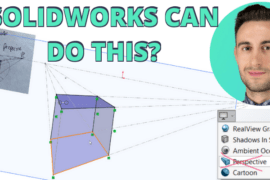
Often, you’re using SolidWorks, taking measurements and changing dimensions to make it fit into another assembly. Well, there’s a cooler way to do this and it’s much easier that changing the matter of a pea with the power of your mind.
The Blatant Assumptions
- You have an assembly
- You can change a few dimensions and everything updates
- People love you
However, you want to slap that assembly right into an upper assembly, avoid messing with the dimensions and allow it to change right along with the upper assembly. Here’s the easy way to go about doing it.

The Slick Example
The example I’ll use is a multiple part, sheet metal assembly, a liner. Thrilling. I want this liner to be completely controlled by the assembly I drop it into. To do this I’ll follow a 4 step process that, by the way, can help set up just about any other type of assembly for top-down usage.

The Simple Steps
- Insert a 3D Sketch
I almost always use a 3D sketch to control top-down assemblies. It helps me keep the sketches, and therefore, the relations, simple, cozy and easier to change than if I were using multiple 2D sketches. Note: After creating the 3D Sketch, I’ll drag and drop it above all the parts in the sub-assembly. This helps keep it more visible. - Create a Basic Guide
Using Tab to control the X, Y, Z orientation in the 3D sketch, sketch some lines that represent the geometry you want to control. In this example we’re controlling the length, width and height of the sheet metal liner.
This serves two purposes:
1. To control the overall size of the assembly
2. To allow it to be “controlled” or driven by a higher assemblyAdd some temporary dims to control the sketch. (You will delete these later when you put your model into an assembly) This will help with the 4th step.
- Modify Your Part Relations
Here, you’re just replacing one relations with another, or should be. Going on the assumption that the size of your assembly is being controlled by a few dimensions, it should be relatively painless to remove a dimension and create a relation from one sketch line to a sketch line in the 3Dsketch.

The sketch line defining the liner height has a Coincident relation to the 3D Sketch - Test Your Part
using the dimension you put on the 3D sketch, change them and see how your parts update. If there’s something that doesn’t look quite right, now is the time to get in and see how it could be done better. Most often, you’ll find where parts are not related correctly to others, or where relations have gone missing with no sign of an error.

A Tip on File Names

If you download the files you’ll notice the file name has a bit of an odd dash number, -X01. The letter in the dash number is used in case you want to have more than one of these components in an assembly. So you can rename them as -A01, -B01, and so on. Simple, effective.
Oh, and for the shop, if they’re going by a drawing that details this sub-assembly, just add a note on the L, W, H that says something like “defined by the next higher assembly.”
You are SO Consistent!
Wow, now this takes the beleaguered task of editing multiple parts, two levels deep in an assembly, and turns it into a simple edit to a 3D sketch in the top level of your sub-assembly. It’s a crucial part of understanding how top-down assemblies work and how to make them work better. It also aids design groups in reusing sub-assemblies and making sure all the model data is consistent, while at the same time reducing duplicate effort. Do you find 3D sketches work better for controlling assemblies?
Image from Youtube: Guy Puts Exploding Pea in Mouth