However, one thing that frustrates me to the point of making a really disturbing face, while people cringe in disgust around me, is the inability to create your very own custom scene without using PhotoWorks. Lame. Head-butt.
Do you use RealView?
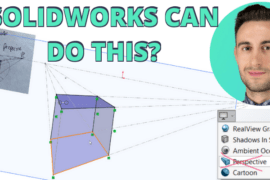
What’s cool about SolidWorks 2008 and 2009 is using RealView when you’re modeling. A nice background scene makes the experience all the more special. Unfortunately, you typically need the PhotoWorks Scene Editor to add Scenes with different backgrounds. (PhotoWorks is a SolidWorks add-on available in Professional and Premium versions.)
Well, it just so happens, that you don’t need PhotoWorks at all, and it’s extremely easy to create your own Scenes with your own backgrounds. Here’s all the files and the steps you need to make it happen.
The Light Goes Nn
One day, in the middle of my 3D modeling angst, trying to come to terms with not having PhotoWorks and being limited to only 27 other scenes in SolidWorks, I did a search for ‘Scenes’ in C:Program FilesSolidWorks Corp. I found the Scenes folder and this is where the adventure begins.
Pick your favorite Scene
I like the Light Card Scene, so I’m going to start with that. Here’s the steps:
First, download this file (orangeburst.png) and put it in C:Program FilesSolidWorks CorpSolidWorksdataImagestexturesbackground
Now…
- Go to C:Program FilesSolidWorks CorpSolidWorksdatagraphicsScenes2 studio scenes
- Copy (Ctrl-C) 66 light cards.p2s
- Go up a level and create a new folder named 04 custom scenes
- Paste the 66 light cards.p2s file into the new folder
- Rename it to 00 orangeburst.p2s
- Open it with Notepad (Right-click, Open, Select program form list…)
- On line 24, replace…
image “Imagestexturesbackgroundrooftopsunrise.png”
with…
image “Imagestexturesbackgroundorangeburst.png” - Select File, Save (Ctrl-S)
Ok, that is that, but to get the Scene to show up in the Scene Dropdown List in SolidWorks, you have to make a really quick mod to another file.
- Open C:Program FilesSolidWorks CorpSolidWorkslangenglishgraphicsmappingscenes.dat
- Add these lines at the very bottom
Custom Scenes, Scenes4 custom scenes
Orange Burst, Scenes4 custom scenes0 orangeburst.p2s - Select File, Save (Ctrl-S)
All the files you need
Here are all the files you need and where to put them.
orangeburst.png (goes in …SolidWorksdataImagestexturesbackground)
00 orangeburst.p2s (goes in …SolidWorksdatagraphicsScenes4 custom scenes)
scenes.dat (goes in …SolidWorkslangenglishgraphicsmapping)
PhotoWorks Scene Editor – (shots of PhotoWorks Scene Editor to figure out more settings.)
Your background is ROCKIN’
Quick and painless. Now that you know how to do it without PhotoWorks, what will you come up with?