30 day free trial of Pro/E!

‘Fairly’ Smooth Surfaces in SolidWorks: How to Create the 3G iPhone *Updated*

by Josh on May 13, 2009 · View Comments

Since we’ve been talking about viewing SolidWorks files on an iPhone, how about we talk a little about viewing an iPhone in SolidWorks. Better yet, how about we model up the back of one to see how we can get those continuous smooth shapes in SolidWorks.

We’ll be using surfacing, and the fine art of visual analysis, to create the shell of the first touch-screen device to be held in our sweaty palms. It’s fairly simple and we’ve even included the file for you to download.

Update:This post is one way of approaching a design problem and not intended to go into complex surfacing. Only an example of creating a ROUGH surface model for creating iPhone accessories. As read in the comments, there is a MUCH BETTER way to actually model the part for manufacturing. That post can be found at this link (iPhone 3G model Take 2). Thanks to everyone that commented on how NOT to model this part. :)


File Download *Updated*
Here is the part file to see one approach. This could be used for designing around an iPhone, but not for manufacturing something as smooth as an iphone back.
Download iPhone-3G-v2.sldprt (V2 – 2009 – 333kb) – [.x_t][.igs][.step]

Real World Example: Design a Case for an iPhone
We’re knocking two things out here at once. This is a perfect example of using simple surfacing features in SolidWorks to create an iPhone model used to develop a case (or other iPhone accessory). For this, you have a small amount of data to start from and a short amount of time to get it done. Pretty typical of a real project. Here we go.

Step 1: Analyze

First you need to download the iPhone spec at the Apple Developer Connection. It has your typical vague dimensional info, but we’ll take care of that in a minute. First we want to look at the design of the iPhone and start thinking about how were going to model it.

If you use your brilliant powers of observations, you’ll notice a few things:

  • This thing has symmetry
  • There’s a constant section
  • The edge is the same all around
  • The corners are perfect squares

Understanding this will help the modeling go smoother and help define a place to start. Since it has a nice constant section we’ll start there, but first we need to make sure we have the right dimensions for our profiles.

Step 2: Get the Dimensions

We’ll want a good sketch of the constant section, the face and the corner radius. Since every dimension we need isn’t on the spec, we’ll bring it into SolidWorks to infer. Do this by starting a sketch on Plane 1, then go to Tools, Sketch Tools, and select Sketch Picture… near the bottom. Download this .jpg of the spec (right-click, save as…) and insert on the plane.

Draw a line and dimension it with the overall height of the iphone (115.5). Select the sketch and scale it (from the corner) to make the image of the iPhone match the line. Create some other sketches on top of the image to get the profiles of the constant section, top face and corner radius. Here’s some of the dimensions you’ll need.
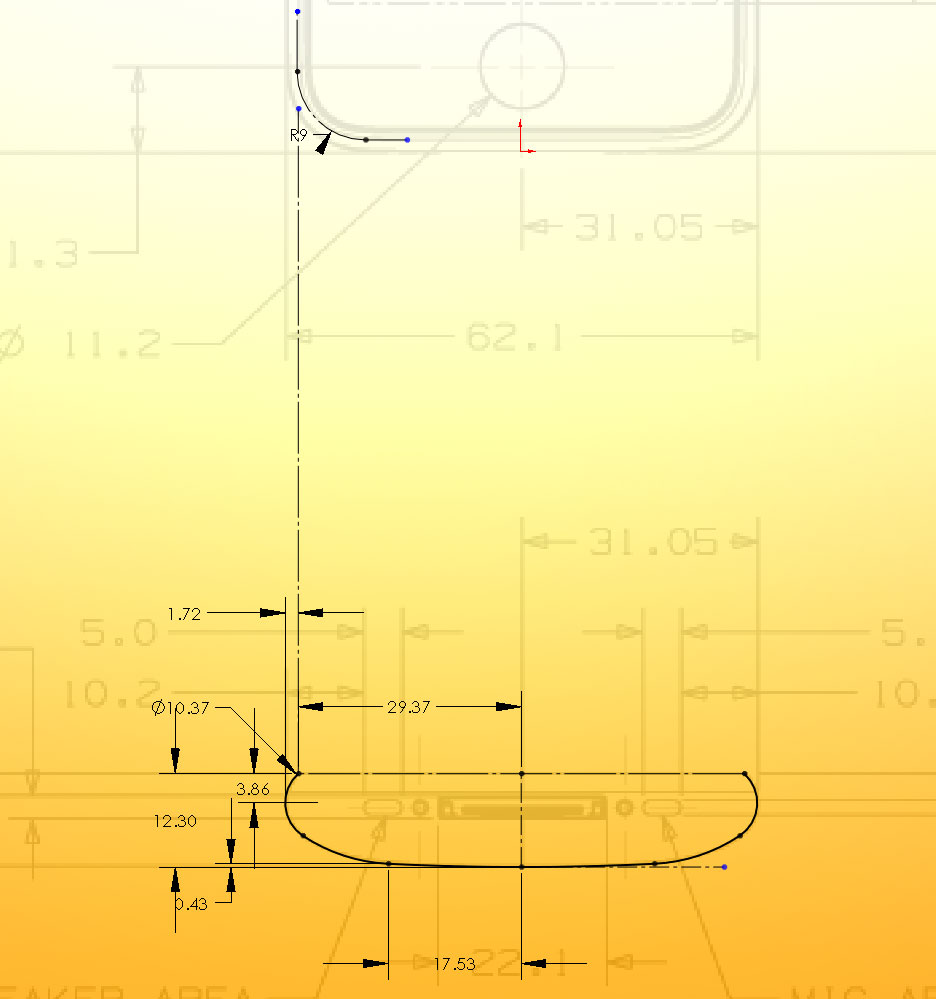
Step 3: The Constant Section

With the sketch of the constant section defined, Extrude a Surface (Insert, Surface, Extrude). Use a Midplane extrusion at 53.67mm (This dimension was also inferred from the image).

Step 4: Sweep the Corners

Create a Plane (Insert, Reference Geometry, Plane) at the end of the profile (Select a point and Plane 1). Start a Sketch on the new plane and Convert the outermost curves of the extruded surface. Create another sketch on the perpendicular Plane 2 and sketch the top face of the iPhone. Hint: Use relations to attach the sketch lines to the existing geometry.

Step 5: Fill the Space

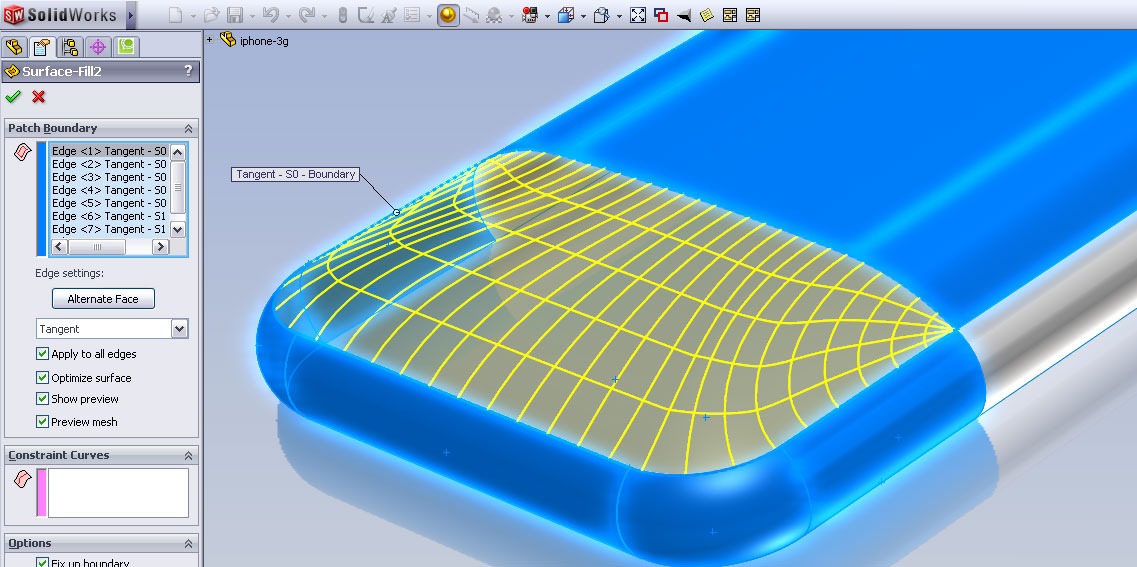
Select Insert, Surface, Fill. This next part can be tricky. First, set the Edge Settings to Tangent. (Doing this later can give some funky results) Then, select the swept edges, one at a time in order, then select the constant section curve. In the options, make sure Merge Results is NOT checked.

Note: Make sure Optimize Surface is OFF for this. If you turn on Curvature (View, Display, Curvature), otherwise you’ll notice small ridges at the corners.
Step 6: Mirror and Knit

You’re almost there. Go to Insert, Pattern/Mirror, Mirror…, select Plane 1 for the Mirror Plane and select the Surface-Sweep and the Surface-Fill as the bodies to Mirror. Now, knit the surfaces together (Insert, Surface, Knit…) to get a single surface.

That’s it. You now have the back of an iPhone you can use to create a case, a dock or other accessory. IF you happen to have another way of creating this, please mention it down in the comments. SolidWorks is known for having multiple solutions to multiple problems.

ShoutOUT!
I’d also like to think Spencer Nugent of IDSketching.com for sparking the idea for this post. Check out IDSKetching.com for some really excellent video tutorials on Industrial Design and the art of sketching.


{ 34 comments }

Bryan May 13, 2009 at 11:44 am

Nice tutorial and very helpful. Surfacing can be intimidating but you broke it down into easy and helpful steps. Thanks.
One thing I noticed is that letting SolidWorks optimize the surface-fill mesh results in slight ridges running to each corner. The curvature on these features actually looks smoother if the “Optimize Surface” box is unchecked in the surface-fill feature.
Thanks again for the tutorial!

keith May 13, 2009 at 11:56 am

Excellent method, but the surface fill produces small wrinkles. The curvature also isn't continuous over many of the transitions. Both issues can be seen using view -> display -> curvature.

Josh M May 13, 2009 at 12:07 pm

Thanks Keith. I'm looking into this right now. didn't think to check the curvature.

Josh M May 13, 2009 at 12:09 pm

Right on Bryan, thanks. I'm working on getting that top section smoother now. will update the file once I have it. Thanks!

Chris Loughnane May 13, 2009 at 12:39 pm

On step 5, why the tangency edge constraint instead of Curvature?

Josh M May 13, 2009 at 12:48 pm

Chris, the Curvature constraint gives really bad result. I used tangency to transition smooth, but like Bryan and Kieth point out there's still some inconsistencies. I'm using boundary surfaces right now to get some better results. I'll post the updated file soon.

Nate Northrup May 13, 2009 at 1:14 pm

There was actually a thread discussing this same challenge on product design forums not too long ago. Mark Biasotti form SolidWorks even chimed in on the thread with a great solution that he used before to model a bar of soap. Splitting it up into 4 sections and using a fill surface seemed to get him a lot cleaner curvature in his model.

http://www.productdesignforums.com/index.php?sh...

Josh M May 13, 2009 at 1:15 pm

Hey everyone, I've updated the file to use a boundary surface with the surface fills for the corners. It's a bit better, but I'm not completely happy with the transition areas. If there's any other suggestions about what would work best, please let me know. Thanks again!

Chris Loughnane May 13, 2009 at 1:25 pm

I'm getting a pretty solid result (not perfect) by changing all the tangent arcs to curvature continuous (or as a colleague of mine calls it… supertangent) and making sure that the bottom endpoint of the arc (now a spline) on the sweep path has a vertical constraint with the inflection point on the constant section of the body. Also, the arcs (now splines) need to be squared up with the edges.

A picture would probably be more helpful, but my words are all I have.

matt May 13, 2009 at 5:42 pm

I know this comment is probably going to come across as a bit harsh, so apologies in advance, but this is absolutely NOT the way you should go about modelling this part. First of all those surfaces *must* be curvature continuous – the back of the iPhone is highly polished so it will show up in the highlights. More importantly, that fill surface has created degenerate points (the points where all the surface isoparms meet). This is one of the most basic no-no's in surfacing: it will give bad results, as some people have already noticed, and it will also likely cause problems down the line if you need to do something like shell.

The link which Nate posted is well worth following for some alternative ways of tackling this problem…

Josh M May 13, 2009 at 5:54 pm

Not harsh at all Matt. I was hoping there would be some comments on how to go about doing this a better way. I'm going to rework this to use the spline/continuous curve approach and that should give a lot better results. Thanks for commenting about this.

matt May 13, 2009 at 9:10 pm

Well, good that you take it with such good grace. I actually learned a lot from this site when I switched over to Solidworks from I-Deas a couple of years ago, so I definitely appreciate what you're doing.

One thing you might also demonstrate in the update is the shaded curvature analysis tool – it would pick up those degenerate corners immediately.

Josh M May 13, 2009 at 9:30 pm

Thanks Matt, I really appreciate that. I'm so going to show the Curvature display. Not checking that was my first mistake :) Thanks again man.

bcourter May 14, 2009 at 1:15 pm

Also, the R9 corner arcs in step 2 should really be g2 rounds. You'll notice that there aren't curvature discontinuities on the real objects, because the reflections stretch instead of break. As far as I've noticed, Apple only joins surfaces g2 or g0.

Josh M May 14, 2009 at 7:36 pm

Thanks you Sir Courter, that helps. Last I remember I don't think SolidWorks could do G2 rounds, but I could be wrong. I believe the original model was done with NX, so same parasolid kernal? anyway, I'm going to try some face fillets and see if I can get it to blend. ha, can it blend? ok, thanks again Blake. we shall soon see. :)

Josh M May 14, 2009 at 11:05 pm

Thanks Nate. There's some good suggestions there and Mark's model is a great example. His tangent curve turned out a lot better that what mine has. Another example there using a loft get me closer, but there's still some discontinuity in the corners. I'll hopefully have something better to post soon.

matt (lombard) May 14, 2009 at 11:36 pm

Ok, here's a request for the whole internet. I want all the people named “matt” to use last names.

Anyway, Josh, read this link: http://www.dezignstuff.com/blog/?p=779

It almost applies.

matt (lombard) May 14, 2009 at 11:39 pm

Josh, Yes, SW can do c2 fillet features, but they have to be face fillets. You can also do c2 sketch rounds by simply making a spline c2 at both ends instead of an arc.

Honestly, I haven;t seen your instructions yet, just commenting on comments.

Bruce Buck May 15, 2009 at 12:00 am

Another tutorial done back in 2006 that has some really good insight on this as well. It's under the section talking about “The ipod is NOT just a filleted box”, starting on slide #26.

bcourter May 15, 2009 at 7:53 am

Yep. Keep in mind that if you want to do a G2 face patch, the boundary curves need to be G2 to the faces their vertices touch.

Also, this is a must read if you haven't already seen it:
http://www.core77.com/blog/featured_items/a_per...

-Blake

Josh M May 15, 2009 at 8:34 am

dang cool Blake. That's excellent info right there. thanks again. I've been able to get a boundary continuous on one edge only so far. I'm tweaking to try some different routes.

<img src=”http://www.solidsmack.com/wp-content/uploads/2009/05/g1-g2-iphone.jpg” alt=”" title=”g1-g2-iphone” width=”525″ height=”394″ class=”alignleft size-full wp-image-4239″ />

Josh M May 15, 2009 at 8:44 am

ha! yeah, I was wondering if the 'matt' was you :) thanks for the link to the post. I am currently trying a boundary/fill combo.

Josh M May 15, 2009 at 8:50 am

Thanks. yeah, i took the instructions down because I though they were misleading for someone looking for more accurate (and like the post headline says “Super Smooth Surfaces”) lesson on surfacing, instead of just an apporach to a modeling challenge.

Atom Ant May 15, 2009 at 12:55 pm

Those pesky isoparms again. They always come in though the wall switches and go right for the Honey Nut Cheerios.

Atom Ant

jimclimb May 16, 2009 at 3:13 am

Nice tutorial, though I guess it's been done in Alias, just find the 5th step kind of dangerous, N side surfaces might not give good result. I would have built it in a different way.

Josh M May 16, 2009 at 12:48 pm

Thanks Jim, yeah, I approach this to create a model for developing a case for the iphone – didn't require a highly optimize surfacing model. I realize, however, that many would want a model of the iPhone using surfacing best practices, a production ready model, so I have created new model 'built in a different way' and will be putting up another post about it. :) Thanks for your comment!

Josh M May 16, 2009 at 12:50 pm

They're about like bedbugs, i tell ya. Prepare for fumigation. :)

Matt Lombard May 16, 2009 at 4:08 pm

One more comment on your Step5. You're showing two degeneracies with the fill feature with optimize off? Turning off optimize will usually make an oversized patch with no degeneracies. Degeneracies are generally not super smooth.

Could you do a Deviation Analysis and show Curvature turned on for the edge between the sweep and the fill?

frustrated May 20, 2009 at 1:12 pm

What a mess! good looking eye candy on top of an awful surface work, that's what most solidworks users do (unfortunately).

Josh M May 21, 2009 at 1:06 pm

yes, i realize that. but thanks. If you read at the top of the post there's a follow-up post that describes better ways to model the part for manufacturing. Much better surface work.

Kevin June 5, 2009 at 9:25 am

If you zebra strip this it dosen't look very good.
There is a reason why Apple uses alias for creating smooth perfect surfaces. Most Solid Modelers can get close to the quality of Alias, even though they claim c2 continuity capabilities.

Josh M June 5, 2009 at 11:41 pm

yep, once again, this model wasn't intended for a production iphone model. The next post iphone: take 2 shows two example to get a better surface. I do agree though, Alias is going to work better with something like this.

sung July 13, 2009 at 11:54 am

Thank you.

zhao0221gmailcom October 18, 2009 at 9:18 pm

links of london Charms links of london Charms links of london Charms links of london Charms links of london Charms links of london Charms links of london sweetie bracelet links of london sweetie bracelet links of london Friendship Bracelets links of london Friendship Bracelets links of london Friendship Bracelets links of london Friendship Bracelets links of london Bracelets links of london Bracelets links of london Bracelets links of london Bracelets links of london sweetie bracelet links of london sweetie bracelet links of london sweetie bracelet links of london sweetie bracelet links of london sweetie bracelets links of london sweetie bracelets links of london sweetie bracelets links of london sweetie bracelets links of london sweetie bracelets

Comments on this entry are closed.

{ 3 trackbacks }

blog comments powered by Disqus