Let me ask you this. Have you ever been so determined to have consistent 3D geometry, that you paid someone to feed you Pad Thai while you linked dimensions on your model?
No? Ok, so maybe that’s for special occasions. But if you’re interested in saving some time and eating Pad Thai on your own, you’ll like this tip.
Randy Simmons, an Application Engineer/CSWP with 3DVision Technologies put up an
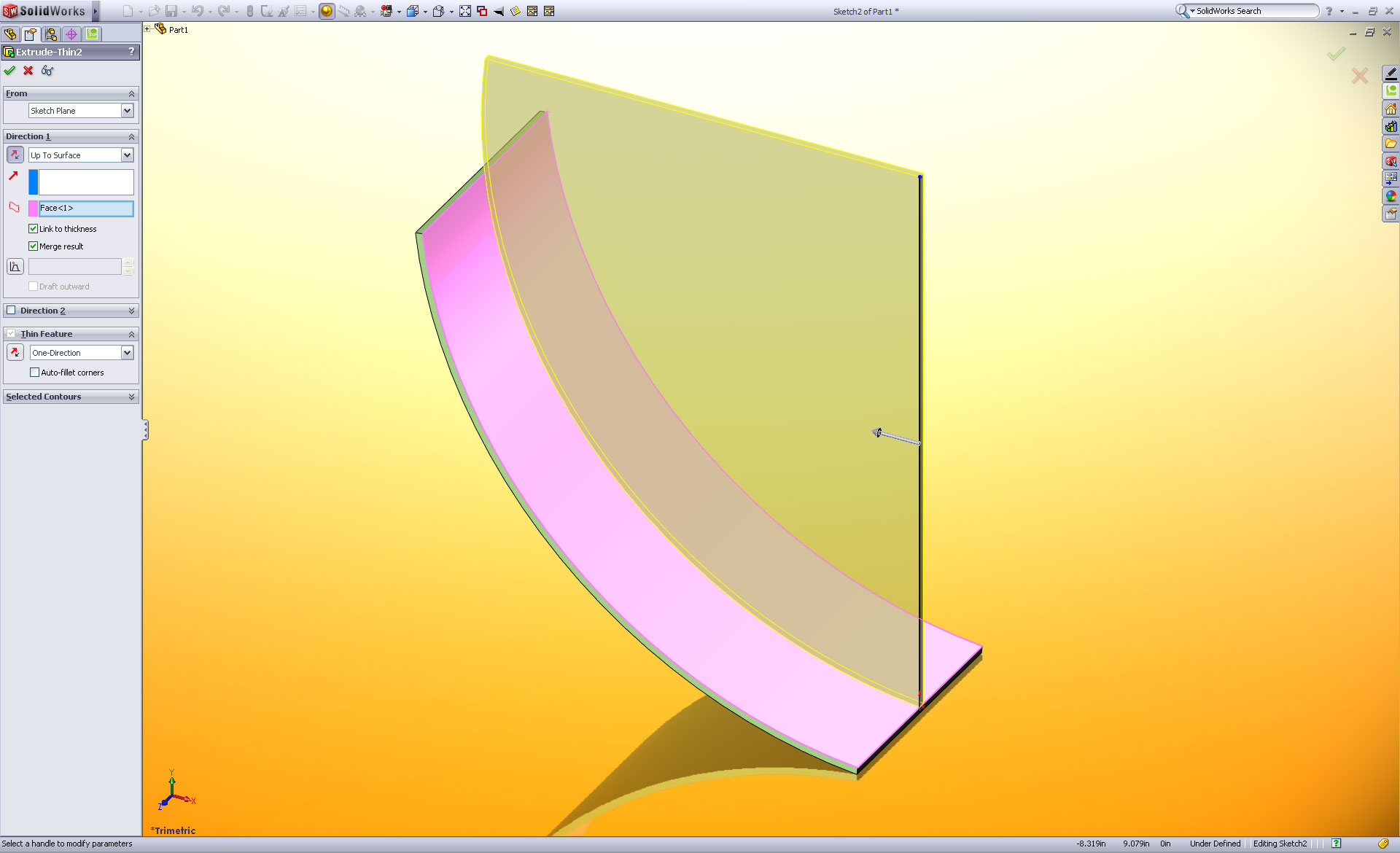
interesting little trick to get your parts to think there’s a thickness in parts extruded as thin parts. Typically this only happens when your creating sheet metal parts using sheet metal features, but this little diddy allows you to have a “Link to Thickness” option no matter what your extruding. Here’s the breakdown.
1. Extrude as a Thin Part
This works for parts extruded as thin parts. After you extrude it. Double-click on the extrusion and either double-click and select Link Values… from the pulll-down or right-click on the dimension and select Link Values… Click to Enlarge.
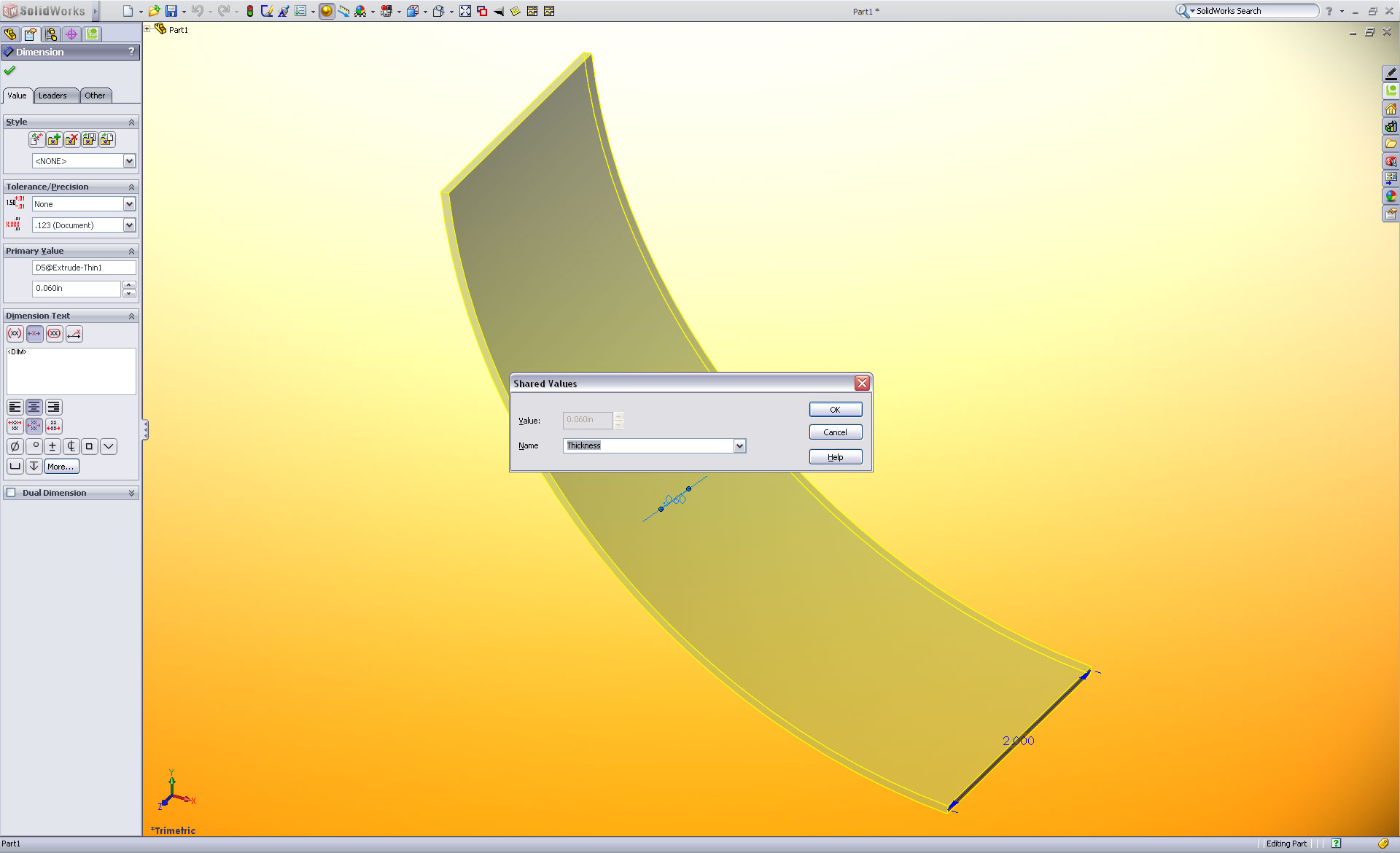
2. Thickness
Add Thickness as a variable name.

3. Link to Thickness enabled
Now you’ll see the “Link to Thickness” option enabled in the extrude property manager.
The nice thing. If you become enraged and unlink the dimension, the “Link to Thickness’ Option stays intact… Actually, I’m not sure you would want this, but it keeps the part from breaking. Thanks Randy.